

AirPrompter documentation
Set your account preferences
Update your profile and authoring style, choose the default Personal or Team surface for this browser, and control guided tours without changing access or billing.
Available
AirPrompter account settings cover five different responsibilities: Profile, Plan & billing, Personalization, Developer, and Site settings. Use each section for its intended job so a browser preference is not mistaken for an access or billing change.
Before you change account settings
Sign in to the account you intend to update and confirm whether you are working in a Personal or Team context. Use staged information for demonstrations and support captures. Never place a password, API key, customer identity, or private prompt text in a profile or preference field.
Choose the correct account section
| Section | Use it for | It does not do |
|---|---|---|
| Profile | Profile image and title | Change plan access or authoring instructions |
| Plan & billing | Subscription, billing, creation usage, invoices | Configure API keys or default workspace context |
| Personalization | Authoring Style signals used when creating or improving prompts | Rewrite every existing prompt automatically |
| Developer | API-key creation, status, rotation, and revocation | Grant Team write access outside OAuth |
| Site settings | Browser-local default surface and guided tours | Change membership, entitlement, or billing |
Update your profile
- Sign in to AirPrompter.
- Open Account.
- Choose Profile.
- Review the current image and title.
- Update only the fields you want other product surfaces to use.
- Save and verify the refreshed value.
Expected result: the account page and product header reflect the accepted profile update. No prompt or workflow content changes.
Do not use a real customer identity when preparing screenshots, documentation, demos, or support reproductions. Use a staged account or crop the profile region.
Teach AirPrompter your authoring style
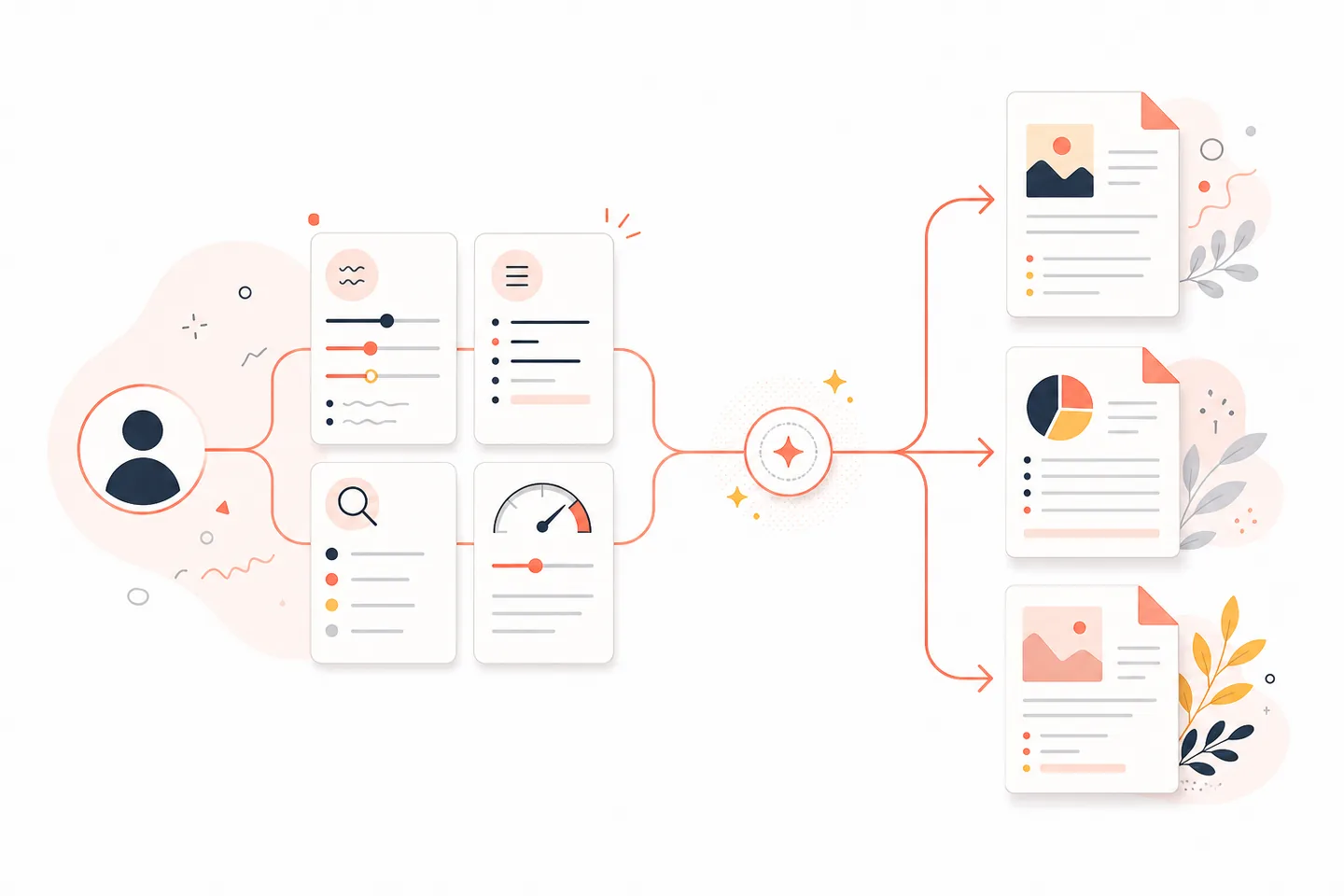
Authoring Style stores explicit preferences that AirPrompter and eligible connected agents can use when helping create or improve prompts. It is not a hidden personality score and it does not turn model output into a saved prompt without the normal save action.
The current eleven preference categories are:
- tone;
- structure;
- vocabulary;
- formatting;
- domain context;
- workflow preference;
- first move;
- research method;
- emphasis;
- omissions;
- quality bar.
The interface presents these as user-readable rows. Write the preference in your own words and keep it specific enough to act on.
Add or change a preference
- Open Account → Personalization.
- In Authoring Style, choose the category that owns the behavior.
- Write one concrete preference, such as “Start with the decision and keep background to two short paragraphs.”
- Save the change.
- Ask AirPrompter or an eligible connected agent to design a harmless prompt.
- Check whether the proposed instruction reflects the preference.
Expected result: future authoring assistance can use the saved signal while the final prompt still requires the normal review and save decision.
Write preferences that agents can apply
| Too vague | Actionable |
|---|---|
| “Make it better” | “State the recommendation first, then list at most three supporting reasons.” |
| “Use my tone” | “Use calm, direct language; avoid hype and rhetorical questions.” |
| “Research carefully” | “Separate verified facts, inferences, and unknowns; attach a source to every factual claim.” |
| “Keep workflows clean” | “Split at research, drafting, approval, or audit boundaries; merge pass-through steps.” |
Put a rule in Authoring Style when it should influence many new prompts. Put it in one prompt when it applies only to that recurring job.
Choose the default Personal or Team surface
Eligible accounts can choose which surface AirPrompter opens by default in the current browser.
- Open Account → Site settings.
- Find the default surface control.
- Choose Personal or Team.
- Navigate to another product page and confirm the intended surface opens.
Expected result: this browser remembers the preferred starting surface when both contexts are available.
If the control is not shown, the account or current context is not eligible for both Personal and Team surfaces.
Control guided tours
Turn tours on or off
- Open Account → Site settings.
- Find Guided tours.
- Turn Show guided tours on or off.
- Visit an eligible page and confirm the chosen behavior.
Restart tour progress
- In Guided tours, choose the restart action.
- Select every tour or the specific available scopes shown by the confirmation dialog.
- Review that restart clears the selected progress.
- Confirm the restart.
- Visit an eligible page to begin again.
Expected result: disabled tours stay out of the workday, or restarted tours can appear again on eligible pages. Restarting a tour does not delete prompts, workflows, or account data.
Manage developer access separately
Open Account → Developer when a program, API client, or approved headless agent needs a credential. Create one key per integration, use the narrowest target and scope, and store the secret once. The complete runbook is Create and protect API keys.
Do not paste a key into an Authoring Style preference, profile field, prompt, workflow, or support screenshot.
Apply preferences to day-to-day work
Consistent executive writing
Save concise tone, recommendation-first structure, and evidence-separation preferences. Then keep each executive workflow’s audience, length, and required sections in the workflow prompts themselves.
Research-heavy work
Use the research-method and quality-bar categories to require source traceability during prompt authoring. Keep the actual allowed sources, date range, and citation format in each job-specific prompt.
Personal and Team switching
Choose the surface you open most often on your work computer. Continue using the visible workspace/account controls to verify the active context before creating or changing shared resources.
Troubleshooting
A preference does not affect an existing prompt
Authoring Style guides creation and improvement assistance; it does not rewrite saved prompts automatically. Open the existing prompt, request an improvement, review the proposed change, and save only if it preserves the job.
An agent ignores a preference
Confirm that the connected action has access to the authoring style, make the preference concrete, and put critical acceptance rules directly in the prompt. Host and model behavior can still vary.
The default Team surface is unavailable
Confirm that the account is eligible for both contexts in the current product state. The preference cannot create Team membership or workspace access.
A restarted tour does not appear
Confirm that guided tours are enabled and that the page has an eligible tour. Restart clears progress; it does not force every page to display a tour.
Completion checklist
- Your profile contains only the identity details you intend to show.
- Authoring Style rules are concrete, reusable, and placed in the correct category.
- Job-specific constraints remain inside the responsible prompt or workflow.
- The default Personal/Team choice is understood as browser-local navigation.
- Guided-tour behavior matches your preference.
- Developer credentials are managed only in Account → Developer.
Next steps
Apply your style to a reusable prompt, design a workflow with explicit quality gates, or create a protected API key.