

AirPrompter documentation
Use AirPrompter in your browser
Find saved workflows beside a supported AI chat, fill reusable variables, choose manual or Run All execution, and stop bad context before it compounds.
Availability varies
The AirPrompter browser extension places your saved workflows beside supported browser-based AI chats. It is the best fit when you want to see the prompt sequence, provide run-specific values, and control what is sent into the current chat.
Choose the extension when
Use the browser extension when:
- the AI tool runs in a supported browser page;
- you want AirPrompter visible beside the conversation;
- you want to review or manually confirm workflow steps; or
- you need a Copy fallback when the page cannot accept prompt injection.
Choose Connect when a supported AI host should discover AirPrompter workflows through an authenticated connector and continue them as a host tool.
Before you start
You need an AirPrompter account, at least one saved Workflow, a browser option currently shown on Connectors, and permission to install extensions in that browser. Keep one harmless test workflow available so you can verify the panel before using private work.
Install the current browser build
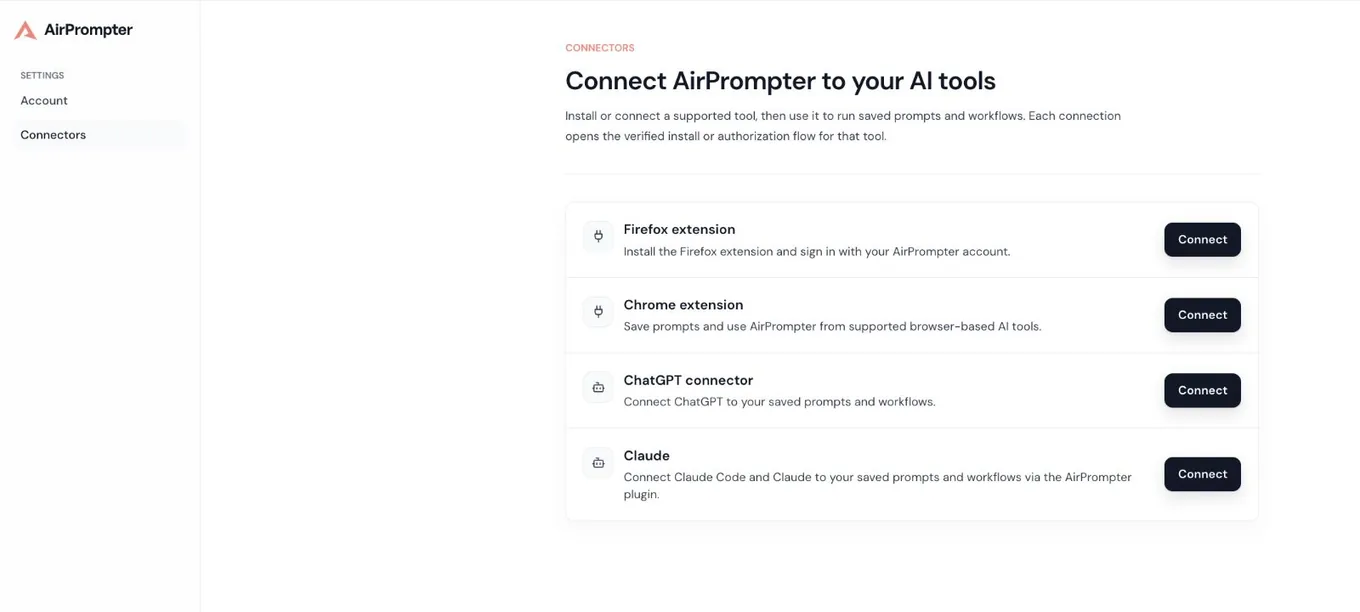
- Open AirPrompter Connect.
- In Available connectors, choose Connect for Firefox extension or Chrome extension.
- Confirm that the destination is the official browser-store listing shown by AirPrompter.
- Complete the browser’s installation flow.
- Open the browser’s extension menu and pin AirPrompter if you want it always visible.
- Open the AirPrompter side panel.
Expected result: the side panel opens and either asks you to sign in or shows the Workflows view.
If installation does not complete
- If a connector is not shown, treat it as unavailable for your current rollout; do not use an old or third-party listing.
- If the store reports that the extension is already installed, open the browser extension menu and locate AirPrompter there.
- If your browser requires an administrator to approve extensions, follow your organization’s browser policy.
Sign in to the correct AirPrompter account
- Open the AirPrompter panel on a normal browser page.
- Sign in using the account that owns the workflows you need.
- Wait for Workflows and the Search control to appear.
Expected result: the panel can load the private workflows available to that signed-in account. The sign-in itself does not publish or share them.
If the panel is empty but the web Library is not, confirm that both surfaces use the same account. If the panel reports an expired session, sign in again rather than repeatedly reloading the AI page.
Confirm the current AI page is supported
Open the AI chat where you plan to work, then open AirPrompter.
The extension checks the active browser tab. When the page supports sending prompts, the active workflow can show Send and may show Run All. When it cannot, use Copy and paste the prompt yourself.
Expected result: you know whether this tab supports Send/Run All or requires the manual Copy path before starting the work.
Find the workflow by its job
- In the panel’s Workflows view, use Search workflows….
- Enter the outcome-oriented name, such as Meeting follow-up or Vendor decision brief.
- Open the matching workflow card.
- Review its saved prompt sequence before running.
If no result appears, clear the search and confirm that the workflow exists in the same account’s web Library. A generic name makes selection harder; rename the workflow in the web app when necessary.
Fill the values that change
When the workflow contains {{variables}}, the panel collects the unique values across its steps.
- Read each variable name before entering a value.
- Provide the source material or context intended for this run.
- Check that the value belongs in the selected AI service under your privacy policy.
- Confirm that no required placeholder remains unresolved in the active prompt.
Example:
| Variable | Value for this run |
|---|---|
meeting_notes | Approved notes from the weekly launch meeting |
Expected result: AirPrompter resolves the same value wherever its matching placeholder appears. The saved prompt remains reusable for the next run.
If you use a CSV option shown by the runner, verify the current row before starting. A CSV can repeat a workflow across rows; it does not make the underlying source safe or accurate automatically.
Run one step at a time
Use the manual path when you want to inspect each response, when the page cannot support Run All, or when the work is high impact.
- Open the workflow and start with the active step.
- Select Send if it is available, or select Copy and paste the prompt into the AI chat.
- Submit the prompt in the chat.
- Wait for the AI response to finish.
- Compare the response with that prompt’s expected output and source material.
- If you used Copy or the panel still shows the step as pending, select Mark as done only after the response is complete and acceptable.
- Continue with the next active step.
The panel prevents other workflow-step actions while a step is still in progress. Complete or clear the current step before sending another one.
Expected result: completed steps are visibly distinguished, the next responsibility becomes active, and the workflow ends with Workflow complete.
When to send or copy a step again
Use Send again or Copy again only after correcting the run value, source context, or AI response problem. Repeating the same weak instruction with the same input is not a repair strategy.
Use Run All when the tab supports it
Run All is available only when the current tab supports the extension’s workflow-run capability.
Before selecting it:
- fill every required variable;
- read the entire prompt sequence;
- confirm that no step has empty prompt content;
- remove unrelated context from the AI chat; and
- decide whether the work is safe to continue without a manual approval after every step.
Then:
- Select Run All.
- Keep the workflow in the same browser tab while it runs.
- Watch the step status and AI chat for failures or unexpected context.
- Select Cancel if a result is wrong, the source is inappropriate, or the run should not continue.
- Review the final output and the intermediate results before using the work.
Expected result: the supported tab progresses through the saved sequence and the panel shows the current run state. A workflow already running in that browser tab prevents another workflow from starting there.
Apply the extension to a workday
After a recurring meeting
Open Meeting follow-up, fill meeting_notes, and run the extraction step. Confirm owners and dates against the notes before allowing the review step to proceed.
While drafting an article
Open a research-to-draft workflow in a clean AI chat. Use manual execution so you can reject weak research before it becomes outline or draft context.
During repetitive row-based work
When the runner offers CSV input, use a test row first. Confirm variable-to-column mapping and the expected output before processing additional rows.
Keep private work out of documentation and support captures
- Do not share a screenshot of the side panel while private workflow names, prompts, variables, or outputs are visible.
- Reproduce a problem with a blank or staged test workflow before capturing it.
- Crop account identifiers and unrelated browser content.
- Never include passwords, tokens, private keys, or customer data in a support image.
These rules also apply when you create your own internal training materials.
Troubleshooting by symptom
The extension is installed but not visible
Open the browser extension menu, find AirPrompter, and pin or open it. If the side panel was already open, close and reopen it after installation.
The panel says the session expired
Sign in again in the panel. If it cannot contact the extension runtime, reload the extension and the current page, then retry.
Your workflow does not appear
Clear Search workflows…, confirm the signed-in account, and verify the item exists as a Workflow in the web Library. A prompt does not appear in the workflow-only list.
Send is missing
The active tab does not currently support prompt injection. Use Copy, paste into the chat, submit, review the response, and mark the step done manually.
Run All is missing or disabled
The tab may not support automated execution, another workflow may already be running in that tab, a step may lack prompt content, or required values may be incomplete. Use the manual path until the visible condition is resolved.
A copied step stays pending
Submitting a pasted prompt is not proof that the AI response is correct or complete. Wait for the response, review it, then use Mark as done.
The next step uses wrong context
Cancel or stop progression. Correct the earliest bad result, restart the affected work, and ensure the next prompt states how to use the accepted result.
The page is not supported
Use Copy in the current chat, switch to a currently supported browser AI chat, or check whether the host is available through Connect.
Completion checklist
- The extension came from the current AirPrompter connector page.
- The panel uses the account that owns the workflow.
- You know whether the current tab supports Send/Run All or requires Copy.
- Every runtime variable has an approved value.
- You review source fidelity before continuing a manual step.
- You know how to cancel Run All.
- No private prompt or output appears in screenshots.
Next step
If you want a supported AI host to discover and continue workflows through an authenticated connection, use Connect and MCP.